Showing posts with label Google. Show all posts

Thursday, October 15, 2015

Map Your Searches!

Okay, so far we have mapped books, paintings, stories, rivers, green degrees, data, caves, snowy winters, refugees, concepts, minds, Mars, gun deaths, poverty, and more.

How about mapping your Google Searches?

Trailblazer, an extension for Chrome, does just that - it keeps track and maps your search history. In other words: it provides you with digital breadcrumbs to find your way back home! Read more about it and ways to include it in your teaching over on ProfHacker.


Friday, October 24, 2014

Cloud (File) Storage

I store all my stuff (e.g. lectures, course materials, handouts, assessment, etc.) in the cloud. The advantages are obvious: everything is accessible from any device anywhere. The disadvantages are obvious as well: I need a (fast) Internet connection and there always are data security issues in cyberspace. That being said - here are some options for 'getting on/in the cloud':
  1. With Google Drive you get 15 GB file storage for free (100 GB at $1.99/month) and the associated Google ecosystem to edit, analyze, present, and share your files.
  2. With Google Apps for Education you get 30 GB file storage, all the other Google stuff, and better security.
  3. Dropbox is still popular and for good reason: it does what is does quite well without the bloated Google ecosystem coming along, plus there are all kinds of useful extensions, some even specifically for academic use. But, you only get 2 GB free storage.
  4. Box is pretty much like Dropbox, but with 10 GB free file storage.
  5. Copy is pretty much like Box (and thus Dropbox), but with 15 GB file storage.
  6. Finally here is Amazon Cloud Drive = the free 'amateur' version of their professional Amazon Web Services.
Now what? It's difficult to see how the smaller services such as Dropbox or Box can survive much longer against the offerings by Google, Apple, Microsoft, Adobe, and Amazon so keep that in mind before making a decision (plus, prices and features change all the time). One more piece of advice: pick one (just one!), commit, go with it, and use dedicated folders for each class that sync automatically with whatever device you are using wherever you are. More here: Backing Up with Google.

Wednesday, October 8, 2014

Going Google (Part 8): Grading

According to my sources this is quite popular in K-12: grading using Google Docs/Drive and some extensions or scripts - here are some of the more popular options:
  1. Grading papers with Google Forms. Andrew Cullison shares his system for using Google Forms as a grading rubric and the grades are automatically calculated in the associated spreadsheet - clever!
  2. Quick grading with Flubaroo. This is an add-on for Google Sheets to auto-grade tests created in Google Forms. This is much easier than it sounds - here's a nice tutorial.
  3. Doctopus and Goobric. Doctopus creates the spreadsheet and Goobric attaches the rubric. Sounds weird, but works great.
http://techedonline.org/wp-content/uploads/2011/09/flubaroo-570x400.jpg

Friday, October 3, 2014

Going Google (Part 7): Docs and Drive

Google Docs and Google Drive have been around for a while now and are quite popular in K-12: you can easily create, share, and collaborate on documents, spreadsheets, presentations, surveys, and drawings. Here are a few features, add-ons, and uses of Docs and Drive that you may find useful:
  1. Suggested Edits in Google Docs. That's the Google Docs version of the MS Word track changes tool. Here's a quick tutorial from PC World.
  2. Add-ons for Docs and Sheets. As the name suggests, these are add-ons to add functionality to your Docs and Sheets.
  3. Flubaroo is a grading tool that connects a simple test created in Google Forms to a Google Sheets response spreadsheet. My sources tell me this is popular in K-12.
  4. Lucidpress and Lucidchart are like Google Docs, Sheets, and Draw only better. Read more at NCS EdTech News.
  5. VideoNot.es runs on Google Drive, and allows you to takes notes that are synchronized with the online lecture video you are watching. Great for MOOCs or online classes.
  6. Google Drive as a very simple web server. You can publish Google Docs to the web using the <iframe> tag and as you update your file the associated web code is automatically-updated. This is much simpler than it sounds - have a look at Using Google Docs to Publish Your CV to the Web or Use Google Drive to Keep Your Online Class Schedule Up-to-Date for easy-to-follow instructions.

Tuesday, September 30, 2014

Going Google (Part 6): Chrome

Chrome is just a browser, but there are tons of interesting apps and tools for Chrome in terms of teaching and learning. Here are a few compilations:
  1. Powerful Chrome Apps (NCS EdTech News 30 October 2013)
  2. Chrome is the New Black (NCS EdTech News, 7 April 2014)
  3. Chrome Apps, Tools, and Extensions

Then there is Doctopus and Goobric to turn Google Drive, Docs, and Chrome into an LMS!


Going Google (Part 5): My Maps!

Google My Maps is a nice and simple way to create and share maps online. There are fancier apps such as Tour Builder or Esri Story Maps, but Google My Maps is about as easy as online map making can be: 1) add markers, 2) connect photos and videos, and 3) share!

Here's a quick tutorial and a simple example.


Friday, September 26, 2014

Going Google (Part 4): Google Classroom

Looking for an alternative to PLATO? Perhaps something lightweight without the bloated features of Blackboard, yet with some education-specific features? Google's Apps for Education have been around for a while and now we get Google Classroom. The initial reviews have been somewhat mixed, but why not try it yourself?
http://www.npr.org/blogs/ed/2014/08/26/341943780/is-googles-free-software-a-good-deal-for-educators

Going Google (Part 3): ePortfolios

Online or ePortfolios are getting more and more popular in Higher Education as assessments tools (see, for example, Chang et al., 2014). But, how do you implement this? LiveText is our 'official' portfolio system, but that forces students into an expensive commercial (and proprietary) system.

There are many options for creating a free and public web presence (Wordpress, Weebly, Google Sites, etc.) and share whatever you want with the rest of the world, including academic materials. I personally like the combination of Google Blogger and Google Drive: students use Google Blogger as their ePortfolio and link to files, content, and media stored on their Google Drive.

Here's a simple tutorial I created for our students - feel free to use and edit it as you like.

Tuesday, September 23, 2014

Going Google (Part 2): Chromecast

I never thought of that one: simply plugin the Chromecast dongle into your classroom TV and you can show YouTube videos and mirror the screen of your laptop or other portable device. No, this is isn't perfect, but I can't imagine a cheaper solution to connect your classroom TV to the Internet. Does anyone here have TV in their classroom so we can try this? Here are some ideas of what we could do:
http://www.classthink.com/2013/10/18/chromecast-review-will-chromecast-work-classroom/

Going Google (Part 1): Chromebooks

Here is an interesting post by Jason Jones at ProfHacker: Eight Thoughts After Trying the Samsung Chromebook.

Chromebooks are cheap ($249) netbooks running Google's ChromeOS to give you access to the Google 'ecosystem' of tools - nothing more, nothing less. That's not too different from the approach Apple took with iOS and its associated devices: here's the hardware, the OS, and the apps and we will make it impossible for you use anything else.

Full disclaimer: I have not touched or used a Chromebook, but it seems a rather limited option - for a couple of hundred dollars more you can get an inexpensive real computer. Still, Chromebooks may be an option when you want to restrict choices, but still want a computer with a real keyboard or mouse (as opposed to a tablet).

In that sense Chromebooks may be the 'happy medium' between providing each student with a high-end laptop or forcing every student to bring their own computer to class (aka a BYOD policy). Chromebooks seems to be getting more popular and accounted for 21 percent of notebook sales in the US.

Friday, September 19, 2014

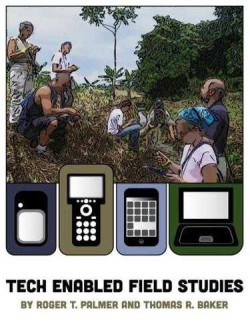
Tech-Enabled Field Studies (Book Review)

Tech-Enabled Field Studies by R.T. Palmer and T.R. Baker

Available @ http://gisetc.com/product/gps_field_studies/ for $14.99 as PDF or $29.99 as hard copy.

The book contains 10 chapters in three logical sections. Section I (Getting Started) begins with the pedagogy of field studies as inquiry-based teaching and learning and nicely expands the idea of fieldwork to other disciplines that we may not immediately associate with fieldwork such as history, mathematics, or art. Section II (Tools) includes 7 chapters explaining the tools of 21st century field studies. The emphasis here is on hardware and software for location-based field data collection by students (see Page 53 for a simple example).
  • Chapter 5 introduces the EdGIS Student Data Mapper, an easy and (almost) foolproof way to get data from the student’s smartphones into spreadsheets, Google Earth, or web-mapping services such as ArcGIS Online.
  • Chapter 6 introduces the EdGIS GeoForms tool, an effective way to turn Google Forms into location-enabled data collection and mapping forms for smartphones or tablets.
Section 3 (Techniques and Ideas) presents 5 project ideas as practical examples of tech-enabled field studies. Or, just call it citizen science!

This is a very useful book (and a quick read) for anyone interested in adding more location-based ‘tech’ into their outdoor labs, field trips, or student field data collection campaigns. Smartphones are rapidly becoming ubiquitous among students and teachers so why not! In a recent survey, over 90 percent of Westfield State students reported owning an internet-enabled smartphone, a percentage that matches national surveys. The book is a bit GIS-and Esri-heavy at times, for example Chapters 7, 9, and 10 are only useful if you are comfortable using ArcGIS Desktop and you teach at an institution with an ArcGIS Online for Organization account (Westfield State does!). The price is right, so why not get a copy for yourself and/or your department library?

Read the brief summary and review from the Esri Ed Team, watch the great 3-part video series 7 Ways to Map Your Field Data by Joe Kerski, and explore the GPS and fieldwork resources compiled by Esri.


Friday, September 12, 2014

Story Maps and Tour Builder

What are story maps? Fun ways to organize and present information in a geographic context! I think storytelling with maps can be an effective way to facilitate, scaffold, and assess student learning while using 21st-century technology. Here are a few examples:
  1. The Mount Cardigan Story Map. This map tells a simple story: hiking Mount Cardigan, but with embedded photos, videos, web links, audio, and panoramas.
  2. Costa Rica (2014). This is a similar type of story, but this time using Tour Builder.
  3. Along 40 Degrees North. Travel across the US and experience how and why the landscape changes.
  4. Light Rail in Denver. Travel along the new West Rail Line.
You can story map using Esri's Story Maps and Google's Tour Builder. They both do the same thing (sort of...) but differently. Story Maps sits on top of Esri's ArcGIS Online and therefore provides more options and analytic functions - although most people will be satisfied with the online Map Tour template. Tour Builder is still in beta (and has been for over a year - not sure what that means) and uses the Google Earth browser plug-in for 3-D tours.

Best of all you can create these maps without any special technology right now from your desk or classroom, but it is more fun with a smartphone and some fieldwork with students (using, for example, the Snap2Map app). Here's all you need to know!

Alternatives to Esri and Google are explained in these Seven Ways to Create a Storymap. Or, just try Visits or Heganoo or StoryMap JS.


Tuesday, September 9, 2014

Liquid Galaxy

Guest post by Laura Wilson (Systems and Digital Services Librarian)

Imagine taking your students on a tour of the White House, Musée d’Orsay, or the Grand Canyon without ever leaving campus. This is now possible thanks to Ely Library’s installation of Liquid Galaxy. Liquid Galaxy is a panoramic screen connected to Google Earth that allows users to virtually tour the world. The panoramic screen gives each virtual tour an immersive 3D experience. The educational uses for Google Earth and Liquid Galaxy are nearly endless.

Here are a few links with ideas:
  1. Teaching with Google Earth (SERC)
  2. Teaching (and Learning) with Google Earth 
  3. Google Lit Trips
  4. Google Maps Education
  5. Google Earth Cool Places
  6. Liquid Galaxy Live Demo at TED
  7. Explore the Everglades with Liquid Galaxy
Liquid Galaxy is operational weekdays from 10am – 4pm and is located on the mezzanine floor of Ely Library. Professors may reserve Liquid Galaxy for a class here. You can find more information about teaching and learning with Liquid Galaxy on the library website.